
Step 1:Register/Log in to Account
1. New customers need to register for a member account. There are two ways to register:
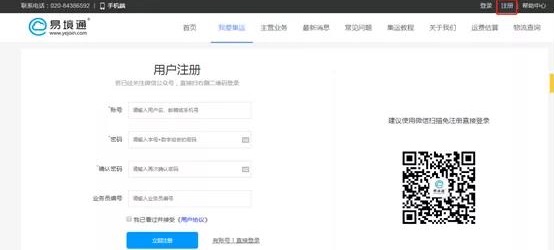
(1) Account registration: Click 'Register' on the homepage, and a registration page will pop up. After filling in the information, click 'Next' to complete.
(2) Scan the WeChat QR code to follow the official WeChat account and complete registration. After registration, scan the code again to enter the member center.
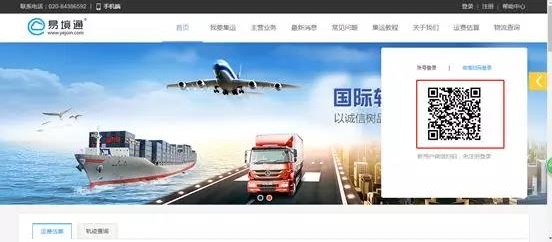
2. Customers who already have a member account can click 'Log in' to log in using their account or by scanning the WeChat QR code.
Step 2:Place Order in Member Center
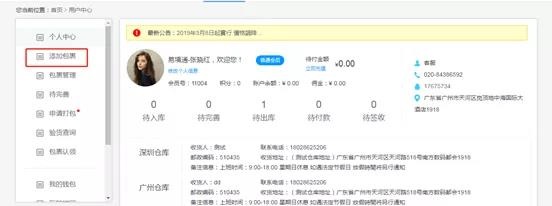
1. Log in and enter the member center, then click 'Add Package' to place an order.
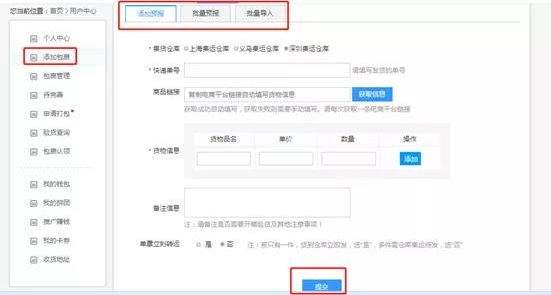
2. After clicking 'Add Package', the following interface will appear. There are three ways to pre-declare. Here, we take adding a single package as an example: After filling in the information and confirming it is correct, click 'Submit' to complete the order.
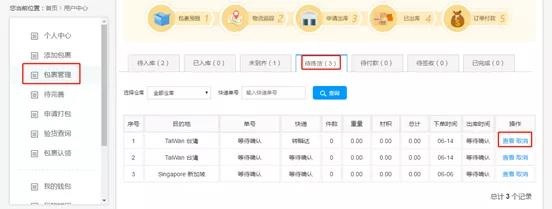
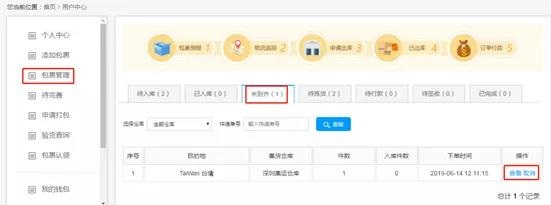
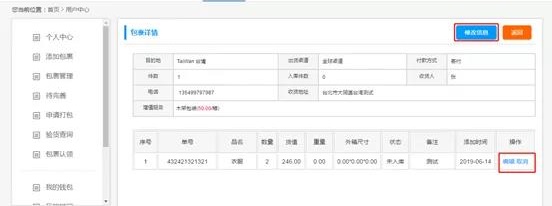
3. If it is an order for immediate shipping, it will appear in the [Not Yet Complete] page and also exist in the [Awaiting Storage] page. Click to view and verify information; order details and shipping channels can be modified.
Step 3:Apply for Packing
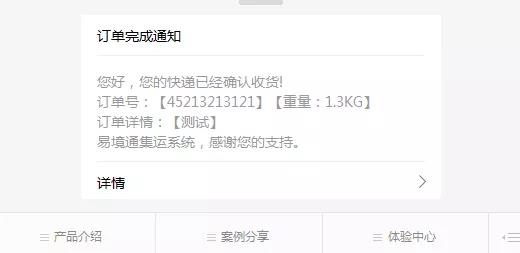
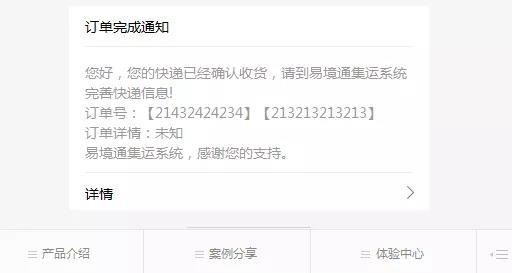
1. After the goods arrive at the warehouse and are scanned for storage, the customer will receive a notification on WeChat about the receipt.
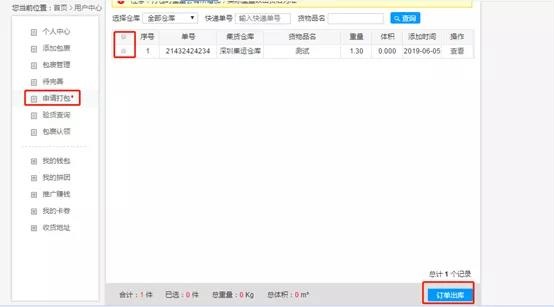
2. After the warehouse stores the goods, the client will display them in [Apply for Packing]. If the customer needs to ship, select the order and click [Order Outbound] to submit the application.
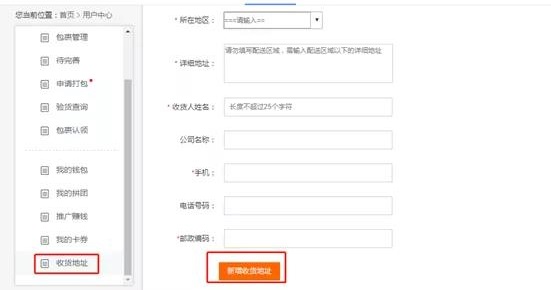
3. First-time shippers need to add a shipping address in [Shipping Address], or they can add an address if shipping to a different location.
After filling in the information and confirming it is correct, click [Add New Shipping Address] to complete.
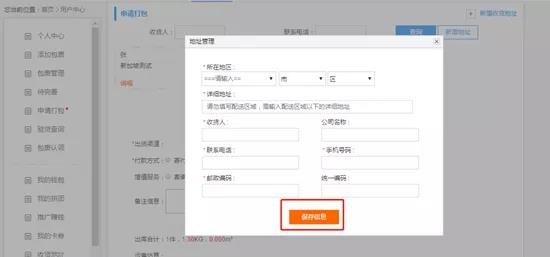
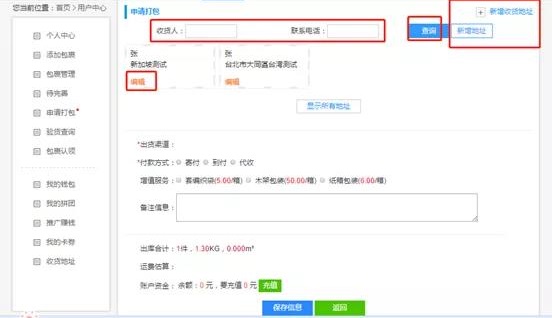
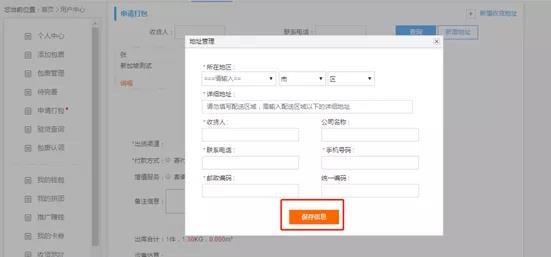
4. Besides adding an address in the shipping address section, you can also add an address on the Apply for Packing page. Click [Add New Address], a pop-up window will appear. After filling in the details, click [Save Information] to complete.
When there are too many addresses to choose from, you can search by the recipient's name and phone number. Existing addresses can also be [Edited] and modified.
5. Select the shipping address, shipping channel, and payment method. If needed, check the value-added services, and similarly fill in the remarks. After completing the information, click [Save Information].
Here is the estimated shipping cost based on the weight and dimensions of the inbound shipment. Customers can pre-charge the shipping fee according to the calculated cost, or wait until after packing is completed to recharge and pay.
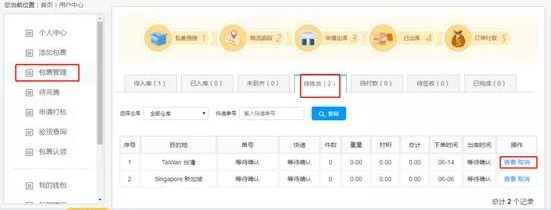
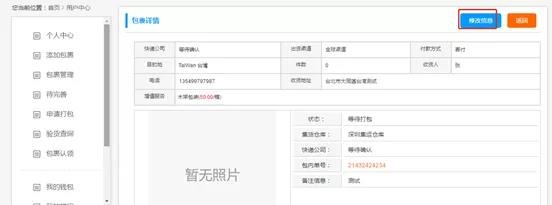
6. After applying for packing, the order will enter the [Pending Picking] page. Click [View] to see the content information of the order. If there are errors in the content, you can also make modifications.
If you do not want to ship temporarily, you can also click [Cancel] to first cancel the packing application order and return to the packing application page.
7. For immediate transfer orders, the push notifications received after warehouse inbound are different. After receiving the message, there is no need to apply for packing, as this step was already completed during the forecast. Just wait for the warehouse to finish packing and then make the payment.
Immediate transfer orders will be directly displayed on the [Pending Picking] page after inbound, and you can also view or modify the information.